Microsoft Excel is more than just rows and columns—it’s a smart calculation and data-management tool. For beginners, Excel can feel overwhelming at first, but once you understand how to navigate the interface and when to use basic formulas, it becomes much easier and extremely useful.
This guide walks you through Excel navigation and the most important basic formulas, with clear examples of when and why to use each one.
Understanding the Excel Interface (Navigation Basics)
Before using formulas, it’s important to know where everything is.
1. Workbook and Worksheet
-
Workbook: The Excel file itself
-
Worksheet: Individual sheets inside a workbook (Sheet1, Sheet2, etc.)
You can add a new worksheet by clicking the “+” icon at the bottom.
2. Rows, Columns, and Cells
-
Columns: Vertical (A, B, C…)
-
Rows: Horizontal (1, 2, 3…)
-
Cell: Intersection of a row and column (example: A1)
Formulas are always written inside cells.
3. Formula Bar
The Formula Bar (above the worksheet) shows the formula used in the selected cell.
You can edit formulas directly here, which is helpful for avoiding mistakes.
4. Ribbon and Tabs
The Ribbon contains tabs like:
-
Home – formatting and basic tools
-
Insert – charts, tables
-
Formulas – built-in functions and formula help
-
Data – sorting, filtering
For formulas, the Formulas tab is especially useful for beginners.
What Is an Excel Formula?
A formula is an instruction that tells Excel to calculate something automatically.
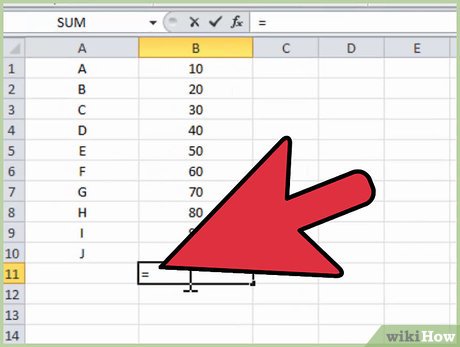
Every formula starts with an equals sign (=).
Example:
This tells Excel to add the values in cells A1 and A2.
Basic Excel Formulas and When to Use Them
1. SUM – When You Need a Total
Use SUM when:
You want to quickly add numbers such as expenses, marks, sales, or quantities.
Example scenario:
You have monthly expenses listed in cells B2 to B8 and want the total.
Formula:
Excel instantly calculates the total and updates it automatically if values change.
2. AVERAGE – When You Need the Mean Value
Use AVERAGE when:
You want to know the typical or middle value, such as average marks or sales.
Example scenario:
Finding the average score of a student across multiple subjects.
Formula:
This saves time compared to manual calculation.
3. COUNT and COUNTA – When You Need to Count Data
COUNT counts only numbers
COUNTA counts all non-empty cells
Use COUNT when:
You want to know how many numeric entries exist.
Example:
Use COUNTA when:
You want to count names, IDs, or mixed data.
4. MAX and MIN – When Finding Extremes
Use MAX when:
You need the highest value (top score, highest sales).
Use MIN when:
You need the lowest value (minimum salary, lowest mark).
Example:
These formulas are useful in performance analysis and reports.
5. IF – When Making Decisions in Excel
Use IF when:
You want Excel to return different results based on a condition.
Example scenario:
Determining pass or fail based on marks.
Formula:
Excel checks the condition and displays the result automatically.
6. SUMIF – When Adding with Conditions
Use SUMIF when:
You want to total values that meet a specific condition.
Example scenario:
Calculating total sales for a specific product.
Formula:
Only rows with “Laptop” are added.
7. VLOOKUP – When Searching Data Tables
Use VLOOKUP when:
You need to find related information from a table.
Example scenario:
Finding an employee’s salary using their ID.
Formula:
Excel searches the ID and returns the matching salary.
8. CONCAT – When Combining Text
Use CONCAT when:
You want to join text from multiple cells.
Example scenario:
Combining first name and last name.
Formula:
Useful for reports, certificates, and databases.
How to Know Which Formula to Use
Ask yourself:
-
Need a total? → SUM
-
Need an average? → AVERAGE
-
Need a decision? → IF
-
Need to search data? → VLOOKUP
-
Need conditions? → SUMIF
-
Need highest/lowest value? → MAX / MIN
Choosing the right formula saves time and reduces errors.
Final Thoughts
Excel becomes powerful once you understand where to work (navigation) and when to apply formulas. Instead of manual calculations, formulas help you work faster, smarter, and more accurately. Start with these basics, practice with real data, and gradually move toward advanced functions.
Mastering Excel is not about memorizing formulas—it’s about knowing which tool to use at the right time.